NetID FAQ

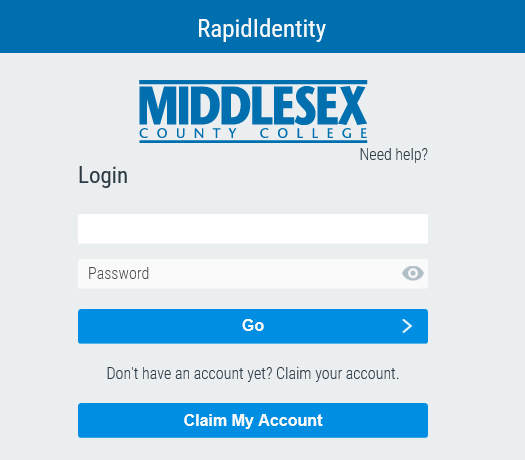
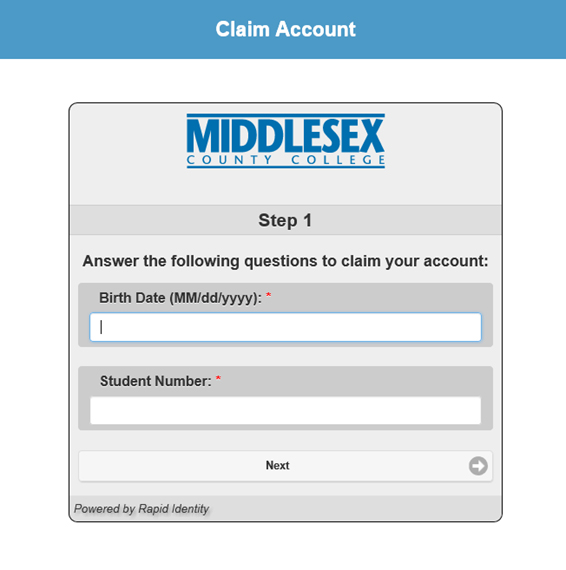
MCC is centralizing access to online and network services through a new account called the MCC NetID. MCC NetID will provide access to Office 365 and the new learning management system (Canvas). Other services, such as wireless network access and print services, will be moved to this new model over time. Students may claim their MCC NetID at the following location: https://netid.middlesexcc.edu For new users to NetID, Click on 'Claim My Account' Under 'Choose a policy', Click the down arrow and select 'New Student' Click on 'Next' Answer the questions to claim your account: Note: This is separate from the traditional Campus Cruiser username and password, which will still be used to access Campus Cruiser for the fall 2017 semester.
Your NetID provides access to Canvas Learning Management System, Office 365 applications, and your college email account. More applications and services will be available shortly as they are upgraded to work with NetIDs.
You can change your password by logging in to https://netid.middlesexcc.edu and clicking on the "Change Password" button. If you have forgotton your password, you can click on the "Forgot My Password" link. (https://netid.middlesexcc.edu/arms/forgotmypassword?redirect_to=/arms)
Student ID number can be found on your Student ID card and in your letter of admission. If you already have Campus Cruiser access, it can be also found in Web Advisor Student Services under MY INFO by clicking on User Profile. Alternatively, you can visit West Hall Enrollment Services with a valid driver’s license an request your student ID number.
If you did not setup security questions and answers when claiming your NetID, you may visit the IT support office in Center 3 with a valid driver’s license or student ID card and request your password be reset.